How to add a metafield to the Country block
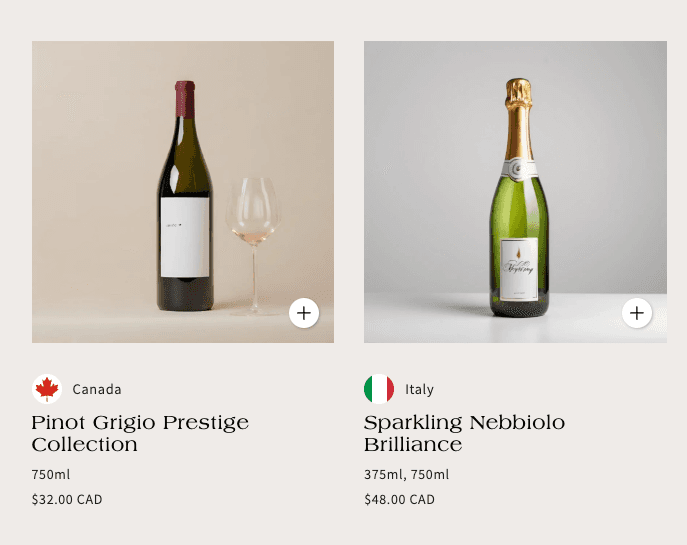
Show a product's country of origin and flag on product pages and product cards in Vincent by connecting the Country block to metafields.
If you want to add the country name and flag to your product on the product page and product card, metafields help by centralising and automating product-specific data. This saves time and minimises manual effort, especially when dealing with many products.
For general guidance on creating and managing metafields in Shopify, refer to the official Shopify documentation.
Why use metafields?
Manually adding country blocks for each product can be time-consuming. Metafields allow you to:
- Link product-specific data (such as country names and flags) directly to your product templates.
- Streamline repetitive tasks, saving time and effort.
- Ensure consistency across product pages.
Step 1: Add metafield definitions for the Country block
- From your Shopify admin, go to Settings > Custom data > Products.
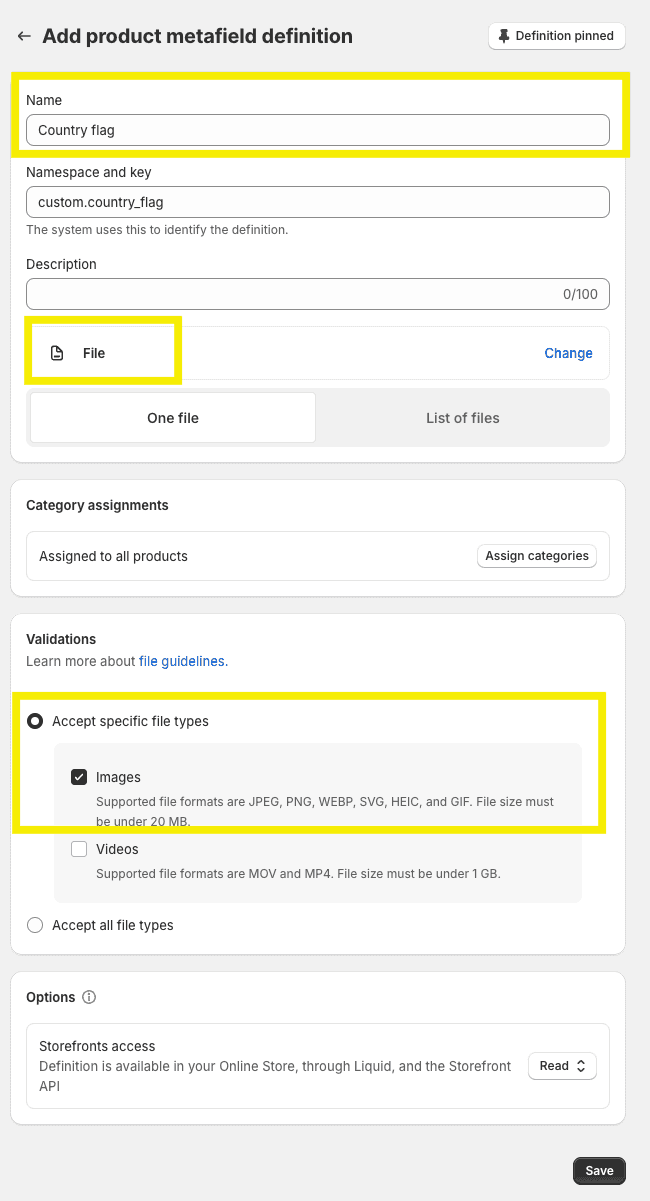
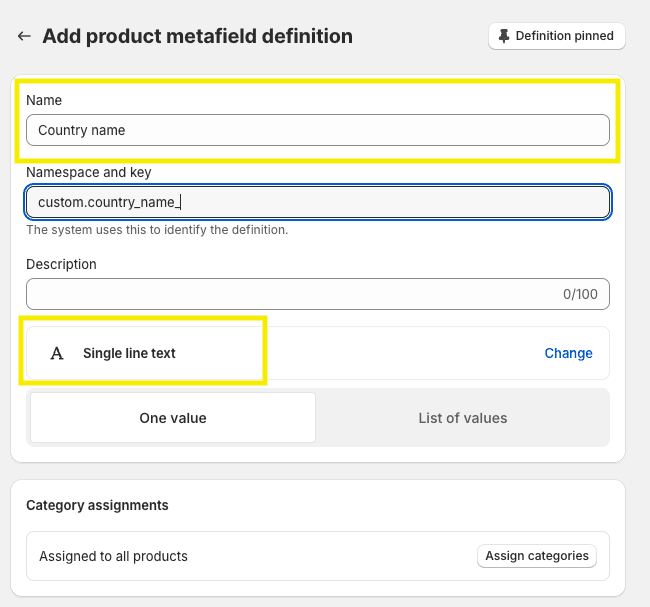
- Click Add definition.
- Enter a name for the metafield (for example "Country name").
- For the country name, set the type to Single line text. For the country flag, create a second definition with the type File.
- Click Save to finalise each definition.
Step 2: Link the metafields to a product
- In your Shopify admin, navigate to Products and select the product you want to update.
- Scroll down to the Metafields section.
- Enter the country name and upload the country flag in the fields for the definitions you created.
- Click Save to apply the changes.

Step 3: Connect the metafields to the product template
- From your Shopify admin, go to Online Store > Themes.
- Select your Vincent theme and open the Product template.
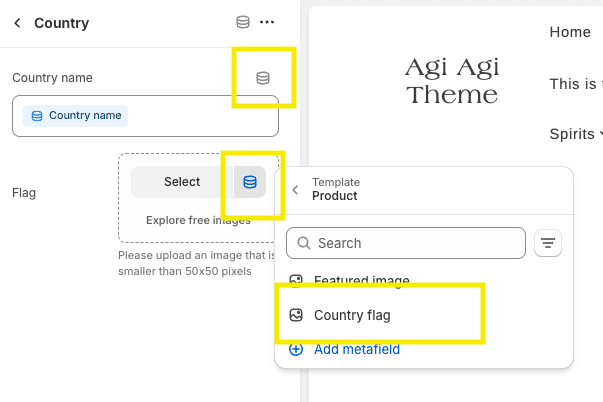
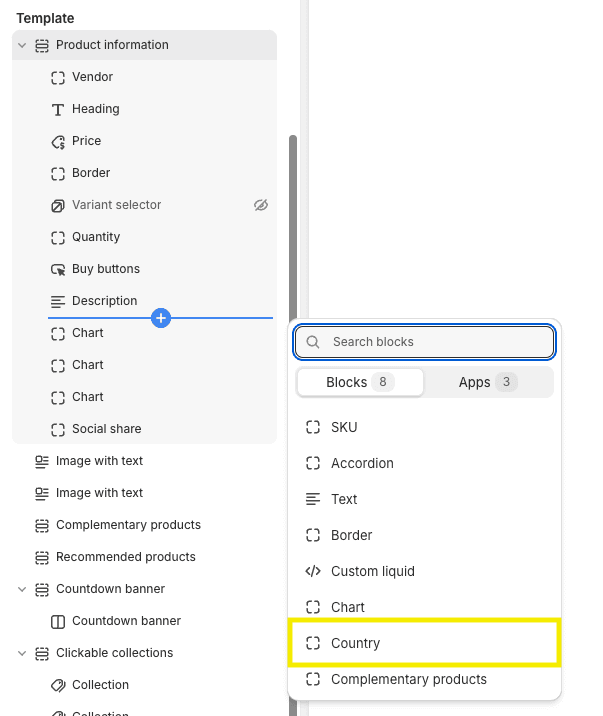
- In the Product information section, find the Country block.
- Click the Connect dynamic source button next to the country name and flag fields, and pick the matching metafields.
- Make sure the product has metafield values assigned so the block displays correctly, then click Save.
Testing your setup
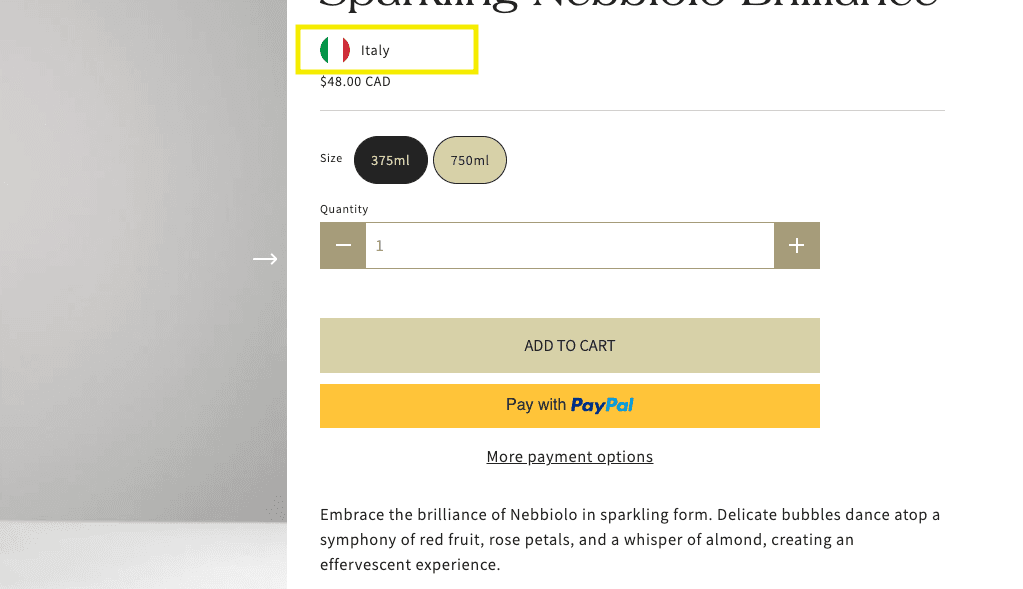
After completing the steps, open a product page to confirm the country block displays correctly. Below is an example of a properly configured country block:
Adding country blocks to product cards
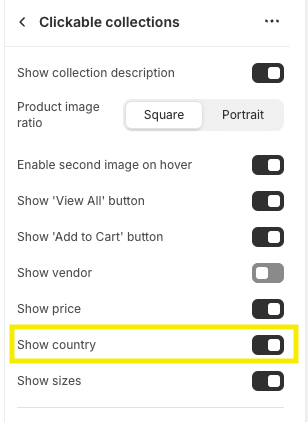
Once the product metafields are in place, the same values can be shown on product cards. Open the section that lists your products, enable the country option in its settings, and connect it to the same metafields.